
MirandaPlace Docs
Dashboard
Changing Modes Without Losing Data
Changing a category mode does not delete its existing item data.
Prices, stock, variants, download settings, and Access configuration are preserved when they are not used by the selected mode. They become available again when the category returns to a compatible mode.
For example, you can prepare products in Catalog mode and later switch the category to Ecommerce to enable purchasing, after completing the required store configuration.
Switching a category to CCK hides its commercial presentation while keeping the stored product information.
Layouts and the Visual Builder
The category mode applies to both product cards and item detail pages.
The visual builder shows compatibility indicators for elements available in:
- all three modes;
- Ecommerce and Catalog;
- Ecommerce only.
Elements that do not apply to the current category mode remain in the saved layout but are hidden on the frontend. This allows the same layout to serve categories with different modes.
Administration and Dashboard
MirandaPlace keeps a shared administration interface for the whole website.
Selecting Catalog or CCK as the store default does not disable the Sales sections or remove access to existing customers, orders, invoices, or other commercial records. Access remains subject to Joomla user permissions.
The dashboard provides an overview of the installation, including existing commercial activity. It does not become a separate catalog-only or content-only dashboard when the store default changes.
Example: Three Modes on One Website
A single website can use:
- Ecommerce for a category of products available to buy online;
- Catalog for a category of products displayed for reference;
- Content (CCK) for a directory of places or technical records.
Set the store default to the mode you use most often, then assign an explicit mode to categories that need different behavior.
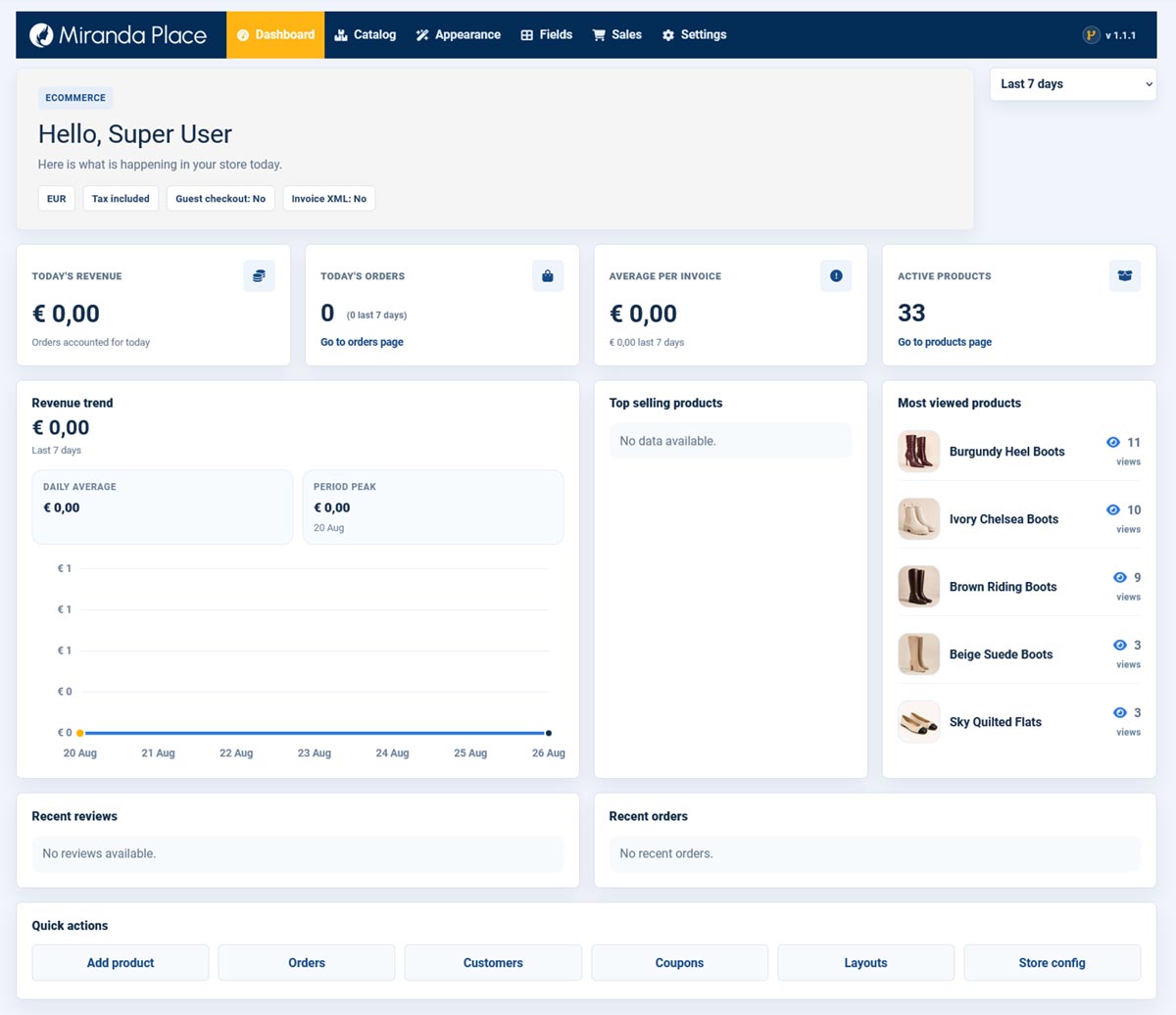
Sales View
Sales view provides an overview of orders, revenue, and product activity.
Commercial statistics cover the whole website. Existing orders remain part of the reporting data even if their products or categories subsequently change operating mode.
The product overview panels include items in categories currently operating in Ecommerce or Catalog mode.
Reporting Period
The selector in the toolbar controls the period used for period-based revenue and order statistics.
Available periods are:
- Last 7 days;
- Last 30 days;
- Last 3 months;
- Last 6 months;
- Last year;
- This month.
Selecting a period reloads the Dashboard with the corresponding data. The selected period is preserved when switching between dashboard views.
Indicators explicitly referring to today always describe the current day.
Main Indicators
The summary displays:
- Today’s Revenue — total order value for eligible orders created today.
- Today’s Orders — number of eligible orders created today, with the selected-period count shown alongside it.
- Average per Invoice — average eligible order value for today, with the selected-period average shown below.
- Active Products — published items in Ecommerce and Catalog categories.
Despite its current label, Average per Invoice is calculated from eligible order totals and order counts, rather than from the number of invoice documents.
Commercial calculations include orders with these status aliases:
- paid;
- completed;
- confirmed;
- payment_received.
The order creation date determines the reporting date. Orders with other statuses are excluded from these calculations.
Revenue and Product Panels
The revenue panel displays the total and trend for the selected period, together with the average per chart interval and the highest interval value.
For longer periods, chart intervals are monthly; for shorter periods, they are daily.
Additional panels display:
- top-selling products;
- most-viewed products;
- recent reviews;
- recent orders.
The top-selling product ranking uses eligible orders across all dates. It is not currently filtered by the reporting-period selector.
Product view counts are cumulative. Recent orders show the latest orders and can include statuses excluded from revenue calculations.
Quick Actions
Quick Actions provide shortcuts to common tasks, including:
- adding a product;
- managing orders;
- managing customers;
- managing coupons;
- editing layouts;
- opening Store Config.
Available actions depend on your user permissions.
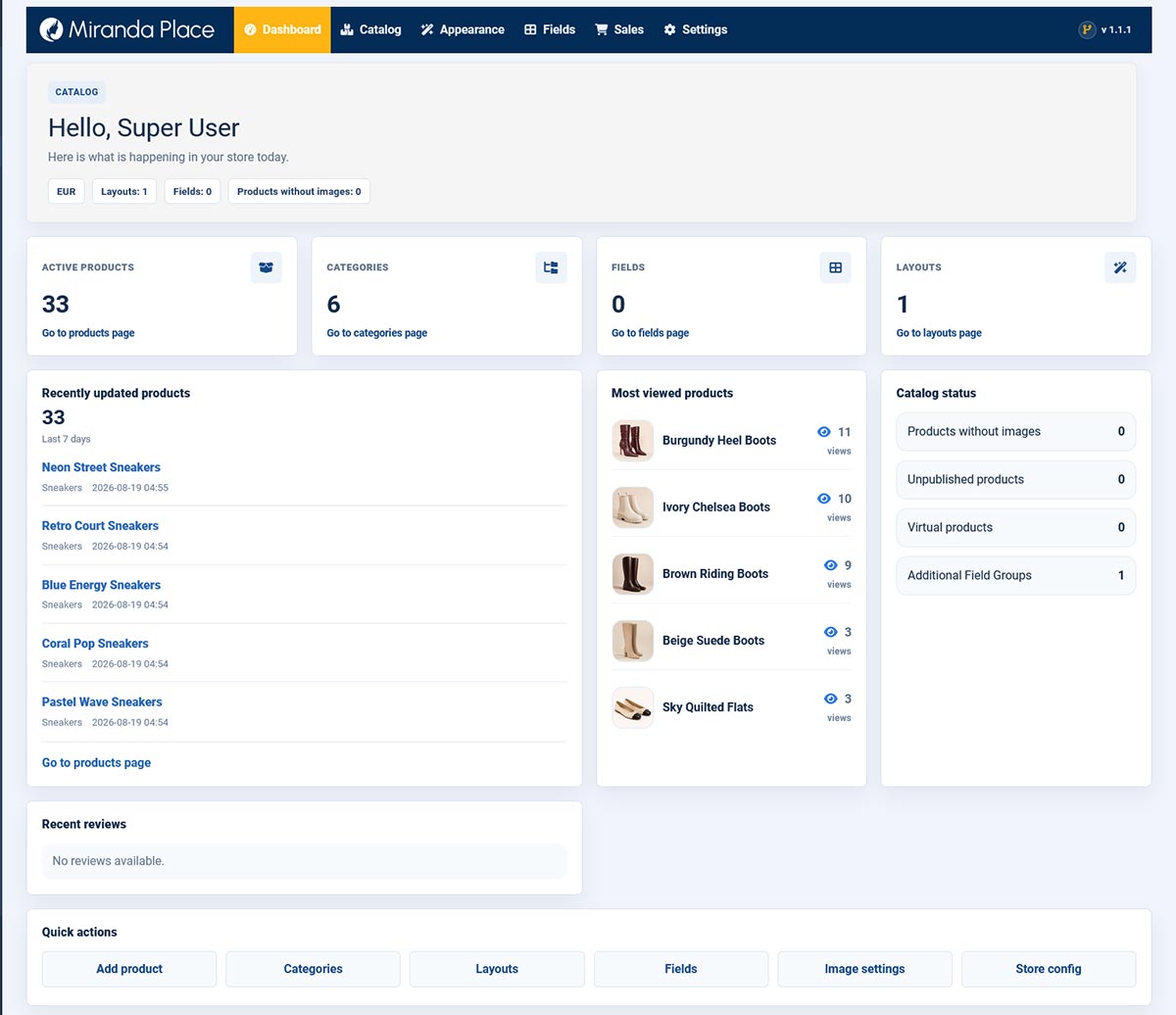
Catalog View
Catalog view focuses on organizing and maintaining products.
It includes items in categories whose effective mode is Ecommerce or Catalog. Categories set to inherit their mode follow the current Store Config default.
Catalog Overview
The summary displays:
- Active Products — published products in the included categories;
- Categories — categories operating in Ecommerce or Catalog mode;
- Fields — configured additional fields shared across the website;
- Layouts — published presentation layouts shared across the website.
Fields and layouts are shared resources. Their counters are not restricted to the categories included in this view.
Recently Updated Products
This panel lists the five most recently modified products within the view’s scope.
Products are ordered by modification date, using creation date when no modification date is available. The list is not restricted to the Sales reporting period.
Catalog Statistics
Additional panels show:
- most-viewed published products;
- products without image records;
- unpublished products;
- virtual products, the existing combined counter for Digital Download and Service products;
- additional field groups;
- recent reviews.
The most-viewed ranking uses cumulative view counts.
Quick Actions
Available shortcuts include:
- adding a product;
- managing categories;
- editing layouts;
- managing fields;
- configuring product images;
- opening Store Config.
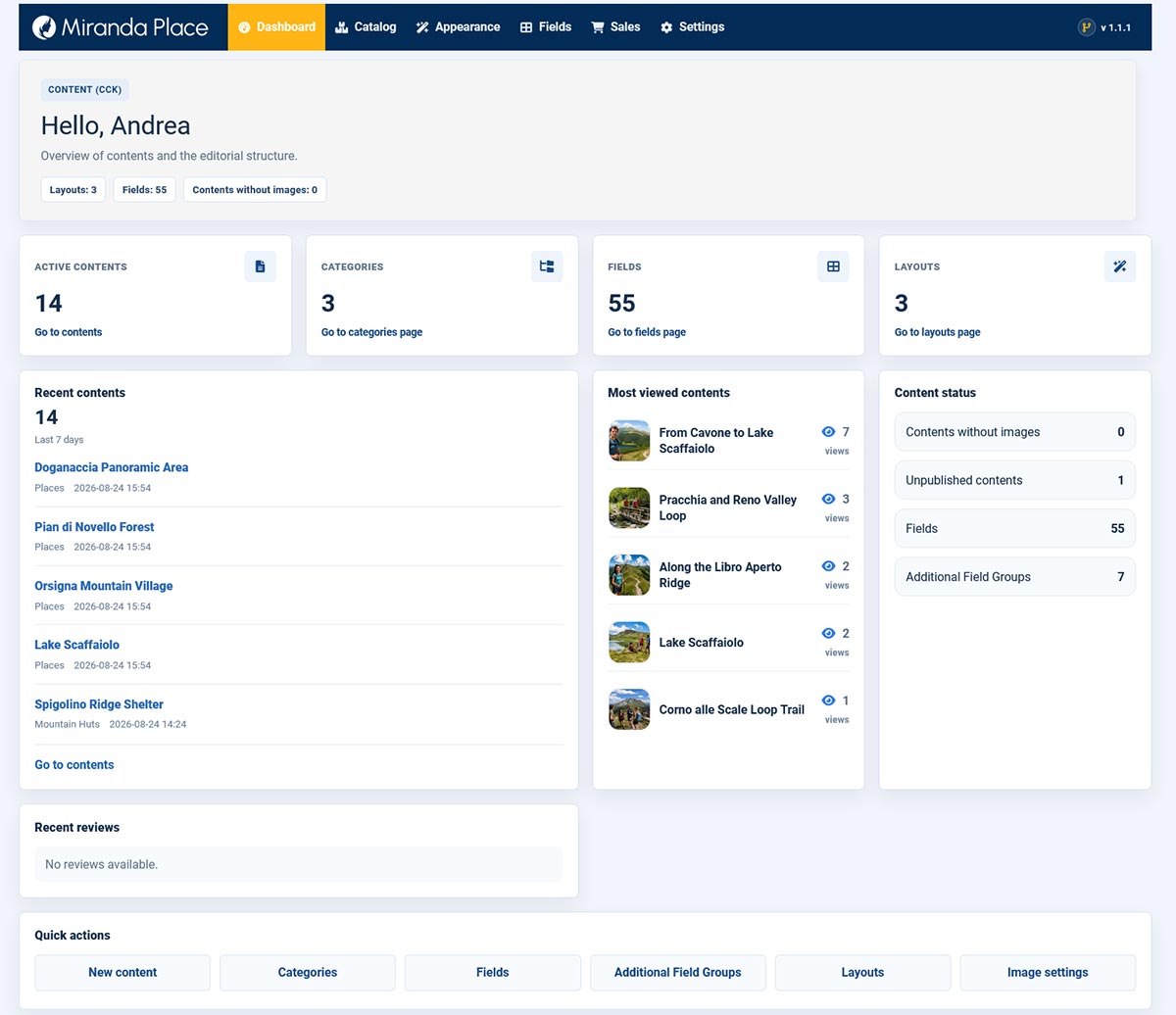
Content View
Content view focuses on structured information managed through Content (CCK) categories.
It includes items whose category currently operates in CCK mode, including categories that inherit CCK from Store Config.
Content Overview
The summary displays:
- Active Contents — published items in CCK categories;
- Categories — categories operating in CCK mode;
- Fields — configured additional fields shared across the website;
- Layouts — published presentation layouts shared across the website.
Fields, field groups, and layouts remain shared resources across the installation.
Recent Contents
The panel lists the five most recently modified items in CCK categories.
Items are ordered by modification date, using creation date when no modification date is available.
Content Statistics
Additional panels display:
- most-viewed published contents;
- contents without image records;
- unpublished contents;
- fields and additional field groups;
- recent reviews.
Content statistics are independent of the Sales reporting period.
Quick Actions
Available shortcuts include:
- creating new content;
- managing categories;
- managing fields;
- managing additional field groups;
- editing layouts;
- configuring images.
The New content action opens the item creation screen. Select a CCK category to use the content editing profile.
Dashboard Links
Dashboard links open the corresponding administration lists or individual records.
Product and content entries open their editing pages. Summary links open management lists, which may have a broader scope than the dashboard counter.
Switching dashboard views does not change access permissions or disable other administration sections.