
MirandaPlace Docs
Categories
Categories organize products and structured content into a hierarchy. They also determine the operating mode of their items and control presentation settings such as product layouts, image galleries, card orientation, and technical information displayed on cards.
Each category can operate in Ecommerce, Catalog, or Content (CCK) mode, or inherit the default from Store Config. Different modes can coexist on the same website.
Changing a category’s mode preserves its existing items and their stored data.
To access category management, go to:
Components → MirandaPlace → Catalog → Categories
The category form includes title, alias, description, publication status, access level, language, and SEO settings.
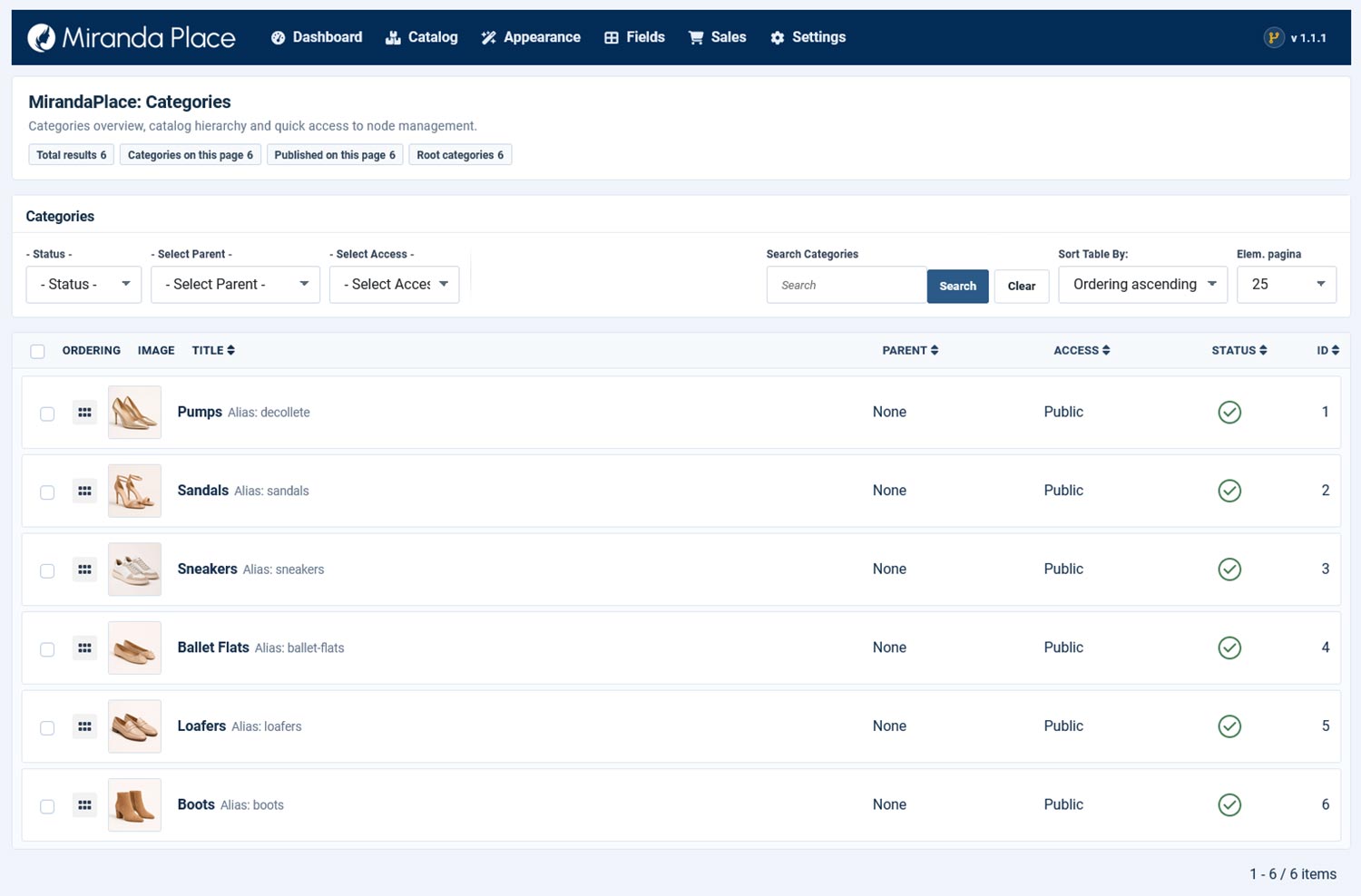
Parent Category
Use Parent category to organize categories into a hierarchy.
Selecting No parent creates a root category. Selecting an existing category places the current category below it.
Category Mode
The Category mode setting determines which capabilities apply to items assigned to the category:
An explicit category mode overrides the store default.
Option & Behaviour
- Inherit from Store Config: Uses the current store default mode.
- Ecommerce: Enables product information and online purchasing, subject to product availability and store configuration.
- Catalog: Displays product information without online purchasing.
- Content (CCK): Presents structured content while hiding commercial and shipping-related elements.
Mode inheritance always refers to Store Config, not to the parent category. A child category can therefore use a different mode from its parent.
For example, a parent category can operate in Catalog mode while a child category explicitly uses Ecommerce.
Changing the mode does not delete prices, variants, stock, download settings, or Access configuration. Features that do not apply to the selected mode become inactive while their data remains stored.
Frontend Behaviour
The individual category page lists products or content assigned directly to that category.
It does not automatically include items assigned to child categories or add a list of subcategories.
Category navigation can be provided through:
- the frontend Categories view;
- the MirandaPlace Categories module.
The Categories module also provides an option to include nested categories.
Inherited Presentation Settings
Product detail layouts and product gallery styles can inherit settings through the category hierarchy.
When the current category does not specify a setting, MirandaPlace checks its parent and subsequent ancestors before using the corresponding global default.
This differs from Category mode, which inherits directly from Store Config.
Deleting Categories
A category cannot be permanently deleted while it contains assigned products or content, or while it has child categories.
MirandaPlace does not automatically move these records elsewhere. Reassign or remove the items and move or remove the child categories before deleting the category.
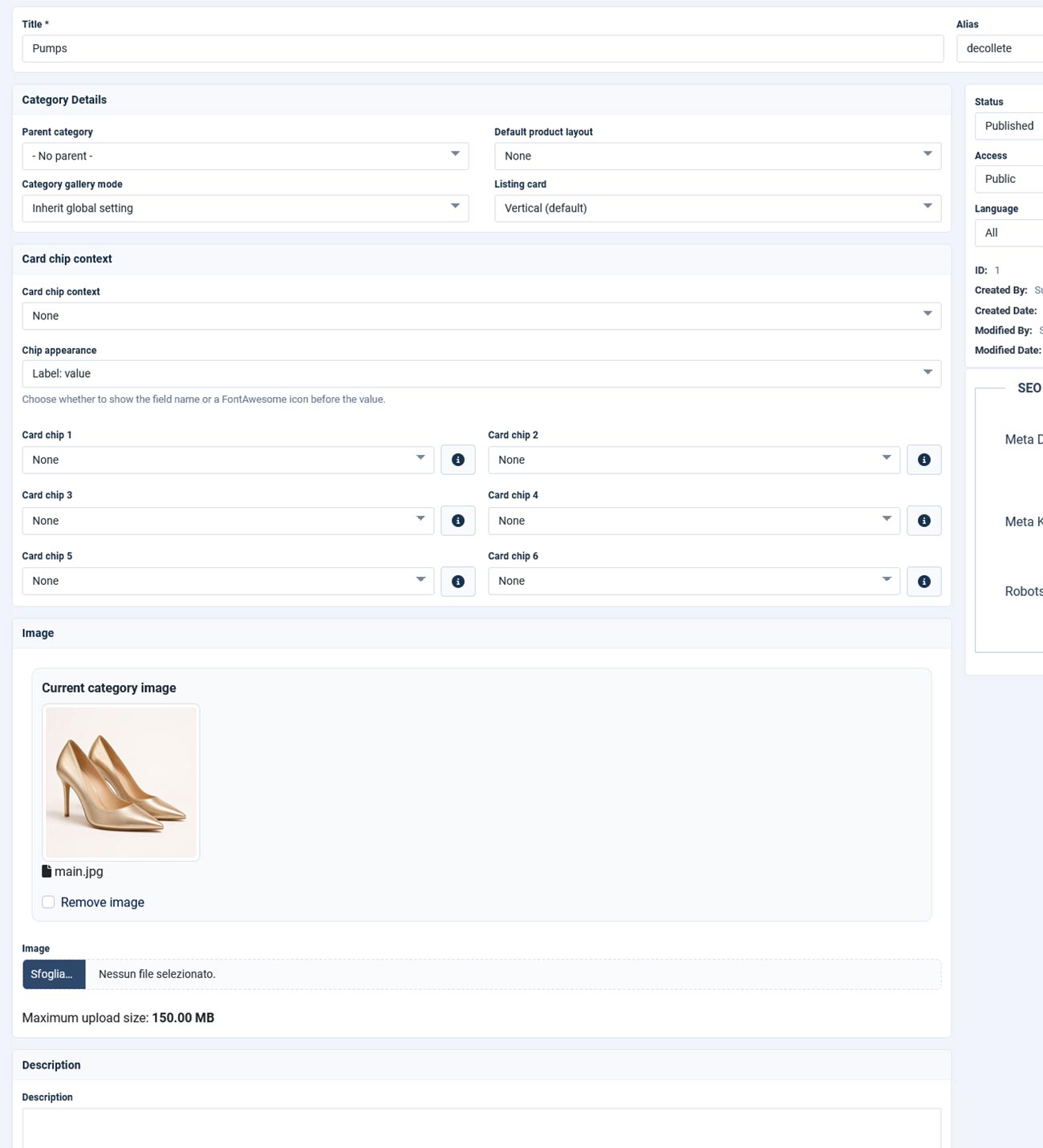
Each category can define presentation settings for its products or content.
These settings allow different sections of the same website to use different detail layouts, product galleries, and card orientations.
Default Product Layout
The global product detail layout is selected in:
Shop Layout → Product Page
Layouts are created with the Product
Layout Builder.
A category can select a specific layout or leave the selection unset. When no layout is selected, MirandaPlace checks the parent categories before using the global default.
If no custom layout applies, the native default presentation is used.
This setting controls the item detail page, rather than the category listing or its cards.
The category’s effective operating mode also determines which layout elements appear. Commercial elements hidden in CCK remain stored in the layout.
Category Gallery Mode
The global product gallery style is selected in Image Settings.
A category can inherit that setting or select one of the available styles:
- Fade with thumbnails on the right;
- Fade with thumbnails at the bottom;
- Fade with thumbnails on the left;
- Fade with indicators or dots.
When Inherit global setting is selected, MirandaPlace first checks the parent categories. If no ancestor specifies a gallery style, the global setting applies.
Gallery appearance and behaviour are configured in Image Settings.
This setting controls the gallery on the detail pages of items belonging to the category. It does not control the category’s own main image.
Listing Card
The Listing card setting selects the orientation of item cards on the category page:
- Vertical;
- Horizontal.
Each orientation uses its corresponding card design configured in MirandaPlace.
This selection applies directly to the current category and is not inherited from its parent.
Global listings can use their own card orientation or follow each item’s category, according to the Cards in global listings setting.
Card Chips display selected technical information directly on product or content cards.
For example, a real estate card can display:
- sale or rental type;
- number of bedrooms;
- number of bathrooms;
- floor area;
- property condition.
The category selects which fields appear. The displayed values come from each individual item.
Card Chip Context
Card chip context identifies the sector used to select compatible technical fields, such as Automotive, Real Estate, or Electronics.
After choosing a context, the Card chip 1–6 selectors offer the corresponding available fields.
Card Chips use MirandaPlace’s specific core fields. They do not automatically include every additional field created in the custom field manager.
Choosing a context does not populate product values. Enter the relevant information in each product or content item.
Selecting Card Chips
A category can configure up to six chips.
Use Card chip 1–6 to choose the fields and their display order.
- An empty slot produces no chip.
- A selected field with no value for the current item is omitted.
- If no selected fields have values, the chip area is not displayed.
- If the same field is selected more than once, only its first position is used.
Chip selections belong to the current category; they are not inherited from its parent.
The card layout must include the chip area for the values to appear.
Chip Appearance
The Chip appearance setting determines how each value is introduced:
- Label: value — displays the field label followed by its value.
- Icon: value — displays an icon followed by the value.
In icon mode, use the button beside each chip selector to choose a Font Awesome icon.
If no icon is selected, MirandaPlace uses an automatic icon based on the field, with a fallback when no specific match is available.
Chips wrap onto additional lines according to the available card width.
Frontend Examples
A standard product card can omit technical chips entirely.
A sector-specific card can use them to highlight useful details without requiring visitors to open each item’s detail page.
The selected fields, available item values, and card layout together determine the final result.
Each category can have one main image.
Depending on the selected layout and display settings, this image can appear in:
- the individual category page;
- the frontend Categories view;
- the categories section of the Shop page;
- the MirandaPlace Categories module, when Show image is enabled;
- the administration category list.
Assigning a category image does not automatically set an image for its Joomla menu item.
Uploading or Replacing an Image
Use the image upload field and save the category to apply the change.
Uploading a replacement updates the category image and removes the previous image resources after the replacement has been saved successfully.
Removing an Image
Select Remove image and save the category to remove its current image and associated generated resources.
Removing the category image does not remove images belonging to its products or content items.
Image Consistency
Use consistent dimensions and proportions across category images for a more uniform presentation.
The category image is separate from the product gallery. Selecting a different Category gallery mode does not change it.